
You're in. Here's how to use it.
Pronuncia doesn't open on its own. You call it on the text you want to read.
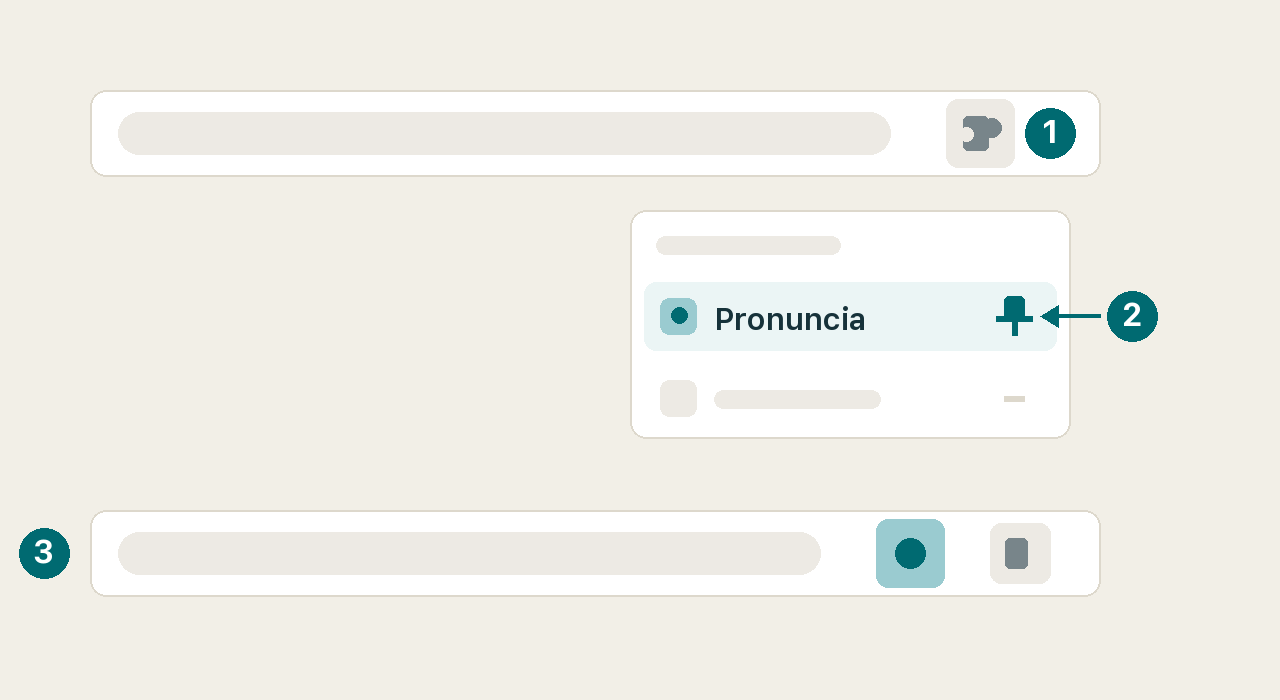
First, pin it
Chrome hides new extensions behind the puzzle-piece icon. Pin Pronuncia and it stays next to the address bar, where you can reach it.
Try it right now
- Select a paragraph on any web page. This one works.
- Right-click and choose “Practise reading with this text”, or press Ctrl+Shift+L (⌘+Shift+L on a Mac).
- Read it out loud. Chrome will ask for your microphone the first time.
What you'll see
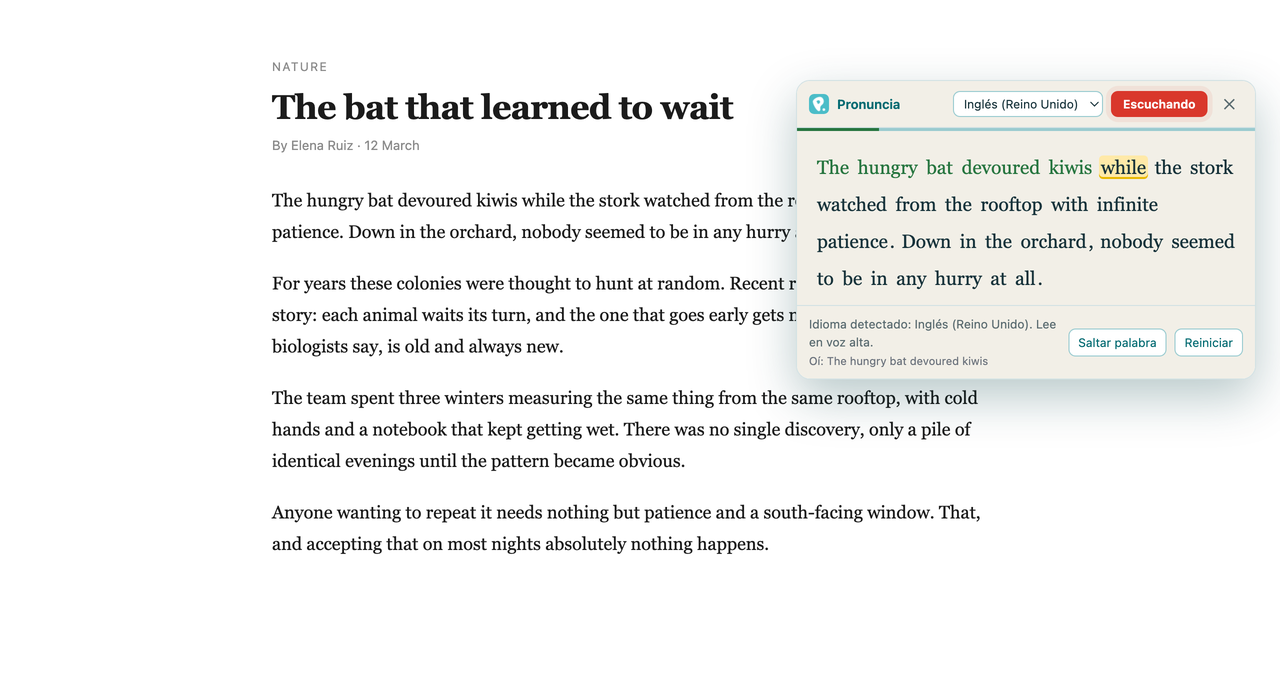
The word it is waiting for is highlighted in yellow. Say it clearly and it turns green, and the highlight steps to the next one. The text does not move on until you get it right — that is the whole point.
When you miss one
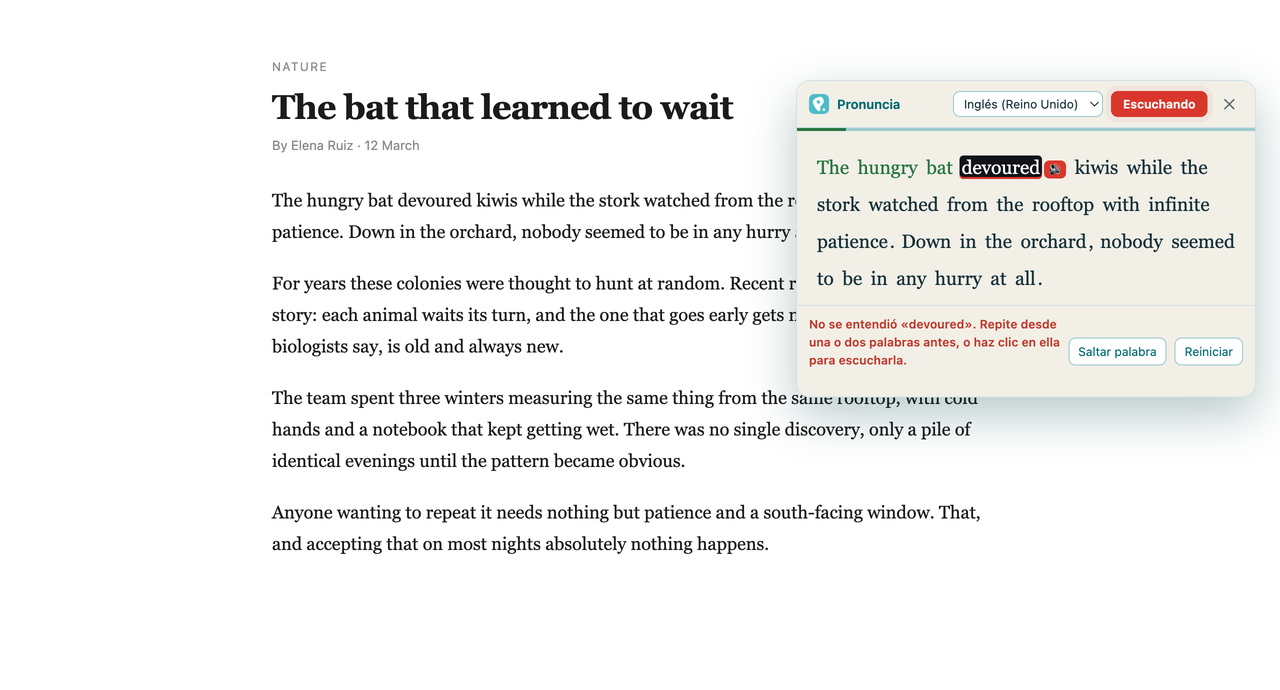
It stops there. The word turns black and a speaker button appears next to it: click it to hear how it should sound, say it again, and carry on. Underneath, “Heard:” shows you what the recogniser actually understood, which is usually where the surprise is.
If it feels too strict
Open the extension's icon and move strictness towards lenient. A strong accent is not a mistake, and the recogniser is worse with proper nouns and technical terms than with ordinary words. Give yourself room while you are starting.
Two things worth knowing
It works in six languages — English, Spanish, Portuguese, French, Italian and German — and it works out which one the text is in on its own.
It uses Chrome's own speech recognition, which sends the audio to Google's servers, exactly as any site with dictation does. We say so plainly in the privacy policy. You need a microphone and an internet connection.